


Tiny Scanner - PDF Scanner App
4.625.29K Reviews
App Specs
- Version
- 8.16.7
- Updated On
- License
- Free
- Downloads
- 10,000,000+
- Developer
- TinyWork Apps
- Categories
- Business
- Platform
- Android, iOS
Screenshots
 Analysis by AppCompare
I like a scanner app best when it gets me from a loose sheet of paper to a file I can actually send, without making the process feel like a project. Tiny Scanner is built for that quick, practical job: use a phone camera to digitize documents, make a PDF, and share it while you’re away from a desk. It’s a business app from TinyWork Apps, and its appeal is easy to understand if you regularly deal with receipts, forms, notes, or paperwork that arrives when you don’t have access to a flatbed scanner.
What to expect from a phone-based scanner
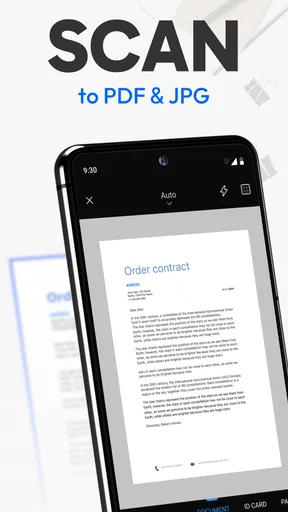
A mobile scan is useful, but it isn’t identical to a scan from dedicated office equipment. You still need decent light, a reasonably flat page, and a steady hand. The advantage is that the camera is already with you, so a document can be captured and sent at the moment you need it. Tiny Scanner’s approach is straightforward: frame the page, review the crop, choose an appropriate look, and save or share the result.
The app has a 4.6 average from around 485,000 ratings, and it has passed 10 million installs. Those figures suggest that this kind of quick document workflow has broad appeal, but they don’t mean every scan will be flawless. In my view, the main reason to try it is convenience rather than a promise that a phone can replace every professional scanner.
Getting your first scan right
When you first open the app, start with a single page rather than a pile of paperwork. Put the document on a surface that contrasts with its edges, move it into even light, and hold your phone squarely above it. That small bit of preparation makes edge detection more reliable and reduces the chance that you’ll need to correct a slanted or incomplete crop afterward.
Once the camera has captured the page, take a moment to inspect all four corners before saving. The color, grayscale, and black-and-white options are worth treating as tools rather than decoration: color can preserve highlights or colored marks, while a monochrome treatment can make plain text easier to read and keep an everyday document visually tidy. I would keep a version that retains important color when it carries meaning, such as a marked-up form or a receipt with colored details.
For a first meaningful result, scan one page, give it a name you’ll recognize later, and send it to yourself or the person who needs it. That simple end-to-end test shows whether the capture is readable and whether your chosen sharing route works for your task. It also gives you a chance to learn the review-and-save steps before you have an urgent multi-page document in front of you.
How the workflow holds up in daily use
Automatic edge detection is helpful because it gives you a clear starting point for framing the page. It is not a substitute for checking the crop, especially with curled paper, a busy background, or faint printing. If a corner is missed, adjusting the framing before you commit the scan is usually less frustrating than discovering the problem after you have sent the file.
Worth Reading Before You Choose

Flipboard Shows What News Apps Must Do Beyond the Feed

Switching to Android Auto Means Rethinking Your Driving Routine

Google Calendar Makes a Crowded Week Easier to Manage

Ludo King Makes the Most of the Minutes Between Plans

Baby Panda World Brings Quick Play to Modern Phones, but Its Game Library Feels Busy

ESPN’s Live Game View Makes Following Close Games Easier
Multi-page capture is particularly useful for paperwork that belongs together. A signed form with an attachment, several pages of class notes, or a short agreement is easier to send as one PDF than as a string of separate images. I’d scan related pages in order and check the page sequence before sharing; a little attention at this point saves the recipient from having to sort out a scrambled document.
Renaming and folders also make a difference once scans begin to accumulate. A useful filename can include the document’s purpose or the person it relates to, rather than a vague label that makes sense only on the day you created it. If you scan frequently, decide on a simple naming habit early. It is a low-effort way to find a receipt or signed page later without opening several files to see what they contain.
Where it fits, and where it doesn’t
Tiny Scanner is a free app for everyone, though it offers optional in-app purchases ranging from $1.99 to $199.99 per item. I’d begin with the free experience and only consider a purchase if you run into a specific limitation that affects your routine. The app is at version 8.11.0, supports OS 7.1 and up, and has been available since July 1, 2015. Its 25,000 reviews provide another indication that many people use it for practical document handling, though your own phone and scanning conditions still matter.
Compared with taking ordinary photos, a scanner app gives you a workflow designed around pages: framing, choosing a document-friendly appearance, collecting several pages into a PDF, and keeping files organized for later. Compared with a desktop scanner, the phone option is easier to use while travelling or between errands, but a dedicated device is usually a better choice for high-volume batches, consistently precise results, or documents that need careful archival quality.
For example, imagine you’re asked to return a signed form before the end of the day and you’re away from home. You can place the page on a clear surface, capture it, inspect the edges and signature, add any accompanying pages to the same document, then share the PDF. The useful detail is to check that the signature and small print remain legible at normal viewing size before sending. If they look muddy or clipped on your screen, improve the light and retake the scan rather than hoping the recipient can make it out.
Small decisions that prevent annoying fixes
One trade-off with phone scanning is that the camera captures whatever is under and around the paper. Shadows, glare, folds, and a patterned table can all make a page harder to read or crop cleanly. I get better results by placing the sheet on a plain surface near even light and avoiding a direct reflection from overhead lamps. For glossy receipts or documents with faint text, changing the angle slightly can help reduce glare, though the page should still look square in the preview.
Think about the final recipient while choosing the scan style. A page meant for someone to read quickly should prioritize legible text; a page where colored annotations matter should retain them. Before sharing a multi-page file, make sure every page belongs in that same document. Combining unrelated receipts just because they were scanned at the same time may save a moment now but makes the PDF less useful later.
Sharing is convenient, but it also creates a small privacy decision. A scan may contain addresses, signatures, account details, or other information you wouldn’t want sent to the wrong person. I recommend checking the recipient and the document contents before tapping share, and using the passcode protection option when it suits the situation. That is not a reason to avoid scanning; it is simply a reminder that a camera-made PDF can carry sensitive information just like a paper original.
Who will get the most from it
I’d recommend Tiny Scanner to people who need occasional or moderate document capture without carrying extra equipment: students submitting signed pages, freelancers sending paperwork between appointments, or anyone who wants receipts and forms in a searchable-by-name personal filing routine. It is also handy for a household that needs to pass around a warranty page or a school form without photographing each sheet separately.
It is less suitable if your regular work involves large batches, tiny print that must remain sharply readable, or documents that need a controlled archival process. In those cases, a physical scanner or a more specialized document-management setup is the safer choice. Likewise, if you only need to preserve a visual reference and don’t need a PDF-style document workflow, an ordinary camera photo may be quicker. The choice depends on whether you need a clean, shareable page or simply an image of something.
Getting comfortable after the first success
Once you’ve sent your first scan, try a small routine that matches what you actually handle. For receipts, create a consistent filename as soon as you save each one. For paperwork with several pages, capture the pages in order and review them together before sharing. For documents that need a quick response, check legibility and recipient details before sending rather than treating the share step as an afterthought.
TinyWork Apps has kept Tiny Scanner focused on a familiar task: capturing paper with a phone and turning it into a document you can keep or pass along. I find that focus useful, though it does not remove the ordinary limits of camera scanning. Good lighting, a clear crop, and a sensible file name still depend on the person using it. With those habits, the app can make a last-minute form or a small stack of papers much easier to deal with.
Ever found yourself needing to scan a document on the go, only to realize you’re miles away from your trusty office scanner? Well, that’s where Tiny Scanner - PDF Scanner App swoops in to save the day. I’ve had the pleasure of giving this app a whirl, and let me tell you, it’s a game changer for anyone needing a portable scanning solution.
Getting Started with Tiny Scanner
First things first, downloading and setting up Tiny Scanner is a breeze. Whether you’re on Android or iOS, a quick trip to the respective app store, a couple of taps, and you’re ready to roll. The interface is clean and intuitive, which I absolutely love because who has time to fiddle around with complicated settings?
Once you fire it up, you’ll be greeted with a simple camera screen ready to capture your documents. The app even lets you choose from various modes like color, grayscale, and black & white, which is super handy depending on the type of document you’re scanning.
Features That Make It Stand Out
Now, let’s dive into what makes Tiny Scanner a must-have. One of the coolest features is the automatic edge detection. It’s like magic! You point your camera at a document, and the app highlights the edges, ensuring you capture the whole thing perfectly. No more awkwardly cropped pages!
Another feature that caught my eye is the multi-page scanning. You can scan a stack of papers in one go and save them as a single PDF. This is a lifesaver when you’re dealing with lengthy documents or contracts.
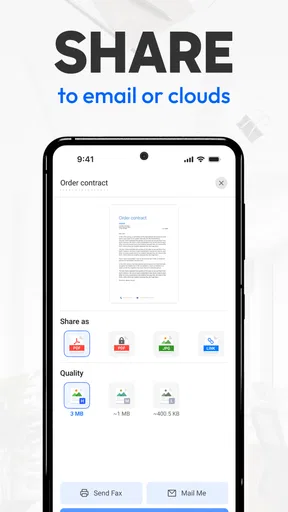
And let’s not forget about the organization options. You can easily rename your scans, organize them in folders, and even share them directly via email or upload them to cloud services like Dropbox or Google Drive. Talk about being efficient!
The User Experience
What really sets Tiny Scanner apart is its user-friendly experience. The app runs smoothly, and I didn’t encounter any frustrating bugs or crashes. It’s light on resources, so it won’t hog your phone’s memory or battery.
One thing I really appreciate is the ability to quickly access previous scans. Whether you need to resend a document or just revisit something, it’s all there neatly organized. Plus, the app supports passcode protection, which is a neat feature if you’re handling sensitive documents.
Why You Should Consider It
If you’re like me and often find yourself needing to send documents while out and about, having a reliable scanner app is crucial. Tiny Scanner provides a straightforward, no-fuss way to digitize your papers. Whether you’re a student, a professional, or just someone who likes to keep things organized, this app is a solid companion.
While there are other scanning apps out there, Tiny Scanner’s ease of use and robust features make it a strong contender. It’s perfect for anyone looking to turn their smartphone into a pocket-sized scanner. Plus, it doesn’t hurt that it’s free to use, with some optional in-app purchases to unlock even more features.
In a nutshell, Tiny Scanner delivers on its promise to be a convenient and efficient scanning solution. So, next time you’re in a pinch and need to scan something pronto, you know which app to turn to. Happy scanning!
Pros
- Quickly scans documents into PDFs.
- Easy sharing via email or cloud services.
- Supports multiple page scanning.
- User-friendly interface
- intuitive design.
- Secure with passcode protection option.
Cons
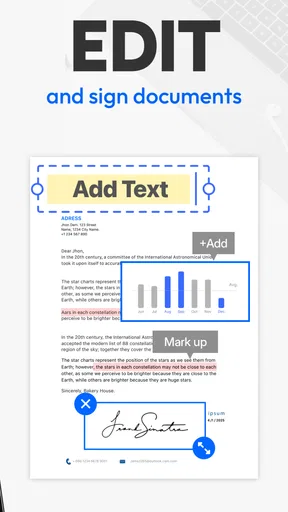
- Limited editing tools in free version.
- Ads can be intrusive for free users.
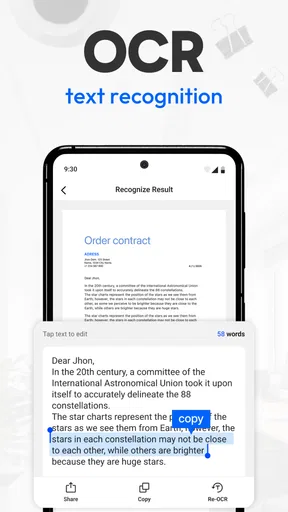
- No OCR feature in basic version.
- Storage management could be better.
- Requires purchase for some features.
FAQs for Tiny Scanner - PDF Scanner App
What is Tiny Scanner and how does it work?
Tiny Scanner is a mobile application that transforms your smartphone into a portable scanner. It allows you to scan documents, receipts, photos, and more, converting them into high-quality PDFs. The app uses your phone's camera to capture images and offers features like edge detection and filters to enhance the scanned documents.
Is Tiny Scanner available on both Android and iOS?
Yes, Tiny Scanner is available for download on both Android and iOS platforms. You can find it on the Google Play Store for Android devices and the Apple App Store for iOS devices. This makes it easily accessible to a wide range of users regardless of their preferred operating system.
Does Tiny Scanner offer cloud integration for saving scanned documents?
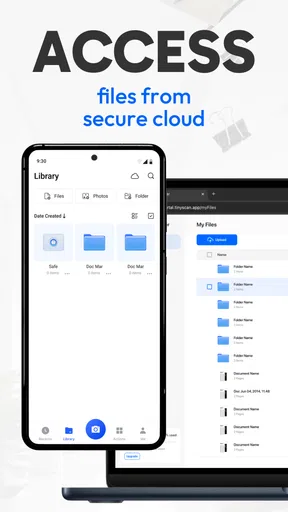
Tiny Scanner provides cloud integration options, allowing users to save their scanned documents directly to popular cloud services like Google Drive, Dropbox, and Evernote. This feature ensures that your files are accessible from anywhere and can be easily shared or stored for future reference.
Are there any limitations in the free version of Tiny Scanner?
The free version of Tiny Scanner offers basic scanning functionalities, but it may have limitations such as watermarks on scanned documents, limited cloud storage options, and fewer customization features. Users who need more advanced features can opt for the paid version, which unlocks additional capabilities.
How secure are my documents when using Tiny Scanner?
Tiny Scanner prioritizes user privacy and document security. Scanned documents are stored locally on your device unless you choose to upload them to a cloud service. The app does not access or store your documents without your permission, ensuring that your sensitive information remains secure.


